


A gaming monitor can have an impressive refresh rate, fast response time, and high resolution, yet still produce disappointing visuals if its display settings are poorly adjusted. Calibration helps you get closer to the monitor’s intended picture quality while making games look more balanced and comfortable. From brightness and contrast to color temperature and gamma, small changes can noticeably improve what appears on screen. eurogamersonline highlights the importance of treating calibration as part of the gaming setup rather than an optional finishing touch. A properly adjusted display can reveal shadow details, preserve bright highlights, and make environments feel more natural without relying on excessive saturation or artificial sharpness. The goal is not simply to make a screen brighter or more colorful. Instead, effective gaming monitor calibration creates a balanced image that works well for long gaming sessions, competitive play, and visually demanding modern titles.
Start With the Monitor’s Default Profile
Before changing individual settings, reset the monitor to its factory or standard picture mode. Manufacturers often include several presets, such as Standard, FPS, Racing, Cinema, RTS, or Custom. These modes can change multiple settings simultaneously, making it difficult to understand what is actually improving the image.
Starting from a neutral profile gives you a clean foundation. Disable unusual enhancements temporarily, especially those that dramatically increase contrast, sharpness, saturation, or color intensity. Once the basic image is balanced, you can decide whether a particular gaming feature adds genuine value.
It is also worth allowing the monitor to warm up before calibration. A display that has only just been switched on may not behave exactly as it does after reaching a stable operating temperature. Give it some time, then begin making adjustments in a consistent lighting environment.
eurogamersonline recommends approaching calibration gradually. Change one setting at a time, observe the difference, and avoid making several major adjustments simultaneously. This simple habit makes it easier to identify which settings actually improve your picture.
Adjust Brightness for Shadow Visibility
Brightness is one of the most important monitor settings because it directly affects how easily you can see dark areas. If brightness is too low, important details can disappear into black regions. If it is too high, blacks may look gray and the overall image can become washed out.
The ideal brightness depends on your room. A brightly lit gaming space usually requires more screen brightness than a dark room. Instead of choosing a particular number and assuming it works everywhere, use a game scene containing both dark shadows and moderately bright objects as your reference.
Look for details such as dark clothing, cave walls, nighttime environments, or objects hidden in corners. You should be able to distinguish different dark shades without making black areas appear artificially illuminated.
Avoid using maximum brightness simply because the image looks more dramatic. Excessive brightness can cause eye fatigue and make bright scenes uncomfortable. A balanced setting should let you see details clearly while maintaining convincing black levels.
Set Contrast Without Losing Highlights
Contrast determines how the monitor separates darker and brighter portions of the image. Increasing it can make a picture appear more dynamic, but pushing the setting too far may cause bright details to blend together.
A useful test is to examine a scene containing clouds, sunlight, reflective surfaces, explosions, or bright user-interface elements. You want highlights to remain distinct rather than becoming a single white mass.
At the same time, extremely low contrast can make the picture look flat. The objective is a visible difference between dark and light areas without sacrificing texture.
Keep in mind that brightness and contrast influence each other. After adjusting one, revisit the other. Calibration is an iterative process rather than a strict sequence in which every setting is changed only once.
Choose a Suitable Gamma Setting
Gamma affects how brightness is distributed between black and white. It has a major influence on midtones, which means two monitors with identical brightness and contrast settings can still look noticeably different.
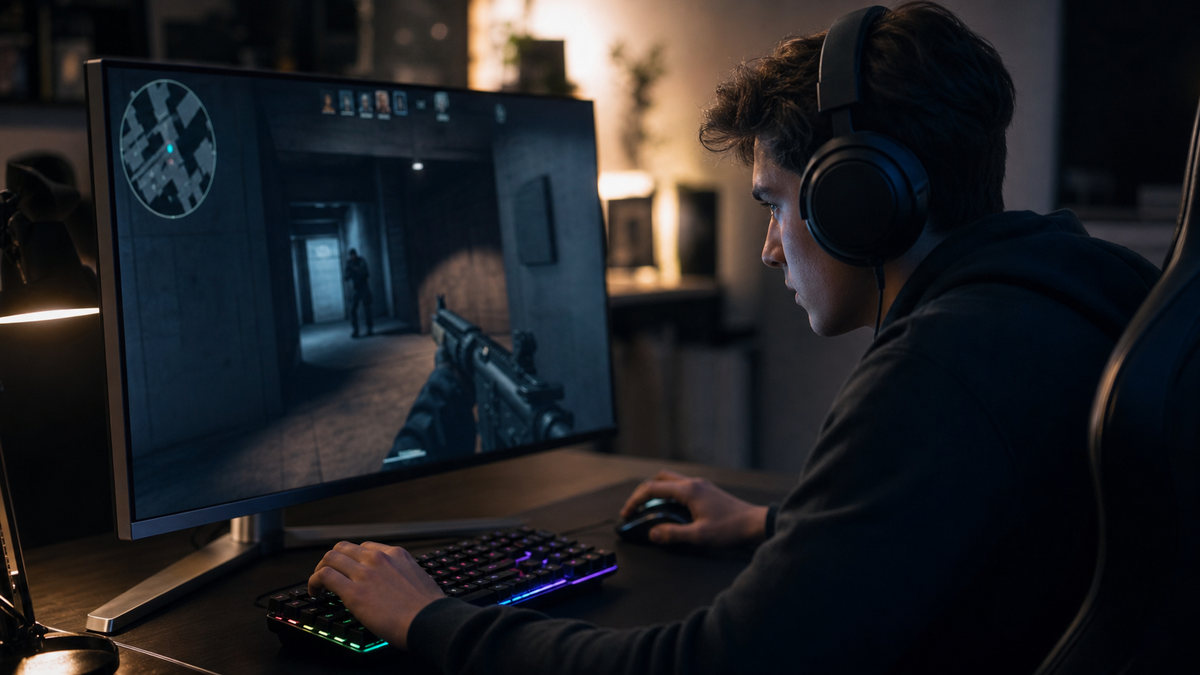
A gamma setting that is too low can make the image look pale and reveal more detail than intended in dark areas. A setting that is too high can make shadows excessively deep and hide useful information.
Many monitors provide gamma presets rather than precise controls. If available, compare the options using familiar game environments. Look for natural-looking walls, skin tones, vegetation, and shadows rather than judging the setting solely by overall brightness.
For general gaming, a balanced gamma profile is usually preferable to an exaggerated one. Competitive players may be tempted to brighten dark areas aggressively, but this can reduce image depth and create an unnatural appearance.
Fine-Tune Color Temperature
Color temperature controls whether the screen appears warmer or cooler. A cooler profile tends to introduce a bluish appearance, while a warmer profile can produce more yellow or reddish tones.
Many gaming monitors ship with cool settings because they make the display appear crisp and striking in a showroom. However, this does not necessarily mean they provide the most natural image at home.
A neutral or moderately warm temperature can make skin tones, landscapes, buildings, and environmental lighting appear more realistic. If you spend several hours gaming, an excessively cool image may also feel harsher.
eurogamersonline suggests judging color temperature across different types of games rather than using one screenshot as your only reference. A setting that looks excellent in a futuristic shooter may appear overly warm or cold in a colorful adventure game.
Control Saturation and Color Intensity
More color does not automatically mean better color. Excessive saturation can make grass look unnaturally green, skies overly blue, and character clothing unrealistically vivid.
If your monitor includes saturation controls, begin with the default value. Increase or decrease it only when you have a clear reason. The best setting generally preserves differences between similar colors instead of turning everything into an intense version of the same shade.
Consider testing:
- Green vegetation
- Blue skies and water
- Human skin tones
- Red interface elements
- Neutral gray objects
- Colorful character costumes
Natural color separation is more valuable than maximum color intensity. If every scene looks extremely vivid, subtle shades may become difficult to distinguish.
Turn Down Artificial Sharpness
Sharpness enhancement can initially make games look more detailed, but excessive sharpening introduces artificial edges and halos. Fine lines may develop bright outlines, while textures can appear noisy.
Native-resolution gaming usually requires little or no additional sharpening from the monitor itself. If the game, graphics driver, or monitor applies sharpening simultaneously, the effect can become particularly aggressive.
Test sharpness using text, architectural edges, distant objects, and thin lines. If you see obvious halos around objects, reduce the setting.
The goal is a clean image where genuine detail remains visible without creating artificial outlines. This becomes especially important on high-resolution displays, where excessive processing can undermine the benefits of a sharper panel.
Understand HDR Before Enabling It
High Dynamic Range can dramatically improve compatible games by expanding the range between dark and bright areas. However, HDR does not always look better simply because it is enabled.
Both the monitor and game need to handle HDR properly. Some displays provide strong HDR performance, while others may produce a more convincing image in standard dynamic range.
When HDR is supported, use the game’s calibration controls if available. These commonly allow you to adjust black levels, peak brightness, or the appearance of reference symbols.
eurogamersonline emphasizes that HDR should be evaluated by detail and balance rather than brightness alone. A good HDR image should preserve texture in bright areas while maintaining convincing shadow depth.
Calibrate With Real Games, Not Just Menus
Monitor calibration patterns can be useful, but actual games provide the most practical test. Different engines, art styles, lighting systems, and color palettes reveal weaknesses that may not appear in a basic desktop environment.
Choose several games with different visual characteristics. A dark horror game can help evaluate black levels, while a colorful open-world title can reveal saturation problems. A competitive shooter may help you judge visibility in shadow-heavy environments.
Try to keep your room lighting consistent during testing. Reflections and changing ambient light can influence your perception of brightness and contrast.
Create a small testing routine:
- Check a dark scene for lost shadow details.
- Examine bright areas for clipping.
- Inspect skin tones and neutral objects.
- Look for unnatural color intensity.
- Test distant textures for excessive sharpening.
- Compare several game environments before finalizing settings.
Useful Calibration Reference Table
| Monitor Setting | What It Controls | Common Problem When Too High | Calibration Goal |
|---|---|---|---|
| Brightness | Overall light output | Washed-out blacks | Comfortable, visible shadows |
| Contrast | Difference between dark and bright areas | Lost highlight details | Strong but controlled separation |
| Gamma | Midtone brightness | Flat or overly dark image | Natural midtones |
| Color Temperature | Warmth or coolness | Blue or yellow cast | Neutral-looking colors |
| Saturation | Color intensity | Artificially vivid image | Realistic color separation |
| Sharpness | Edge enhancement | Halos and noise | Clean native detail |
| HDR | Dynamic brightness range | Excessive highlights or poor blacks | Balanced bright and dark areas |
Consider Your Room Lighting
Calibration should never be separated from the environment where you play. A monitor can look perfectly balanced at night but appear too dim during the daytime.
Direct sunlight is especially problematic because it changes how you perceive contrast and black levels. Strong reflections can also make you increase brightness unnecessarily.
If possible, position the monitor away from direct windows and harsh lamps. Soft ambient lighting behind or beside the display can make extended sessions more comfortable without creating distracting reflections.
Your room does not need to resemble a professional studio. Consistency matters more than perfection. If your lighting conditions change dramatically throughout the day, consider creating separate profiles for daytime and nighttime use.
Use Gaming Features Carefully
Modern gaming monitors often include features such as black equalizers, dynamic contrast, blue-light filters, motion enhancements, and game-specific presets. These tools can be useful, but they should serve a specific purpose.
A black equalizer, for example, can reveal details in dark scenes, but excessive use may make blacks appear gray. Dynamic contrast can create stronger differences between scenes but may change brightness unpredictably.
Motion-related features can also affect image quality or introduce artifacts depending on the game’s frame rate. Test them individually rather than enabling every feature simply because it is available.
eurogamersonline encourages gamers to prioritize consistency. A display with moderate, well-controlled processing often looks better than one overloaded with visual enhancements.
Check Refresh Rate and Resolution
Calibration is not limited to colors and brightness. Confirm that your computer is actually running the monitor at its intended resolution and refresh rate.
A high-refresh display provides little benefit if the operating system or game is locked to a lower refresh rate. Similarly, scaling or resolution mismatches can affect image clarity.
Check your display settings and then verify the game’s graphics menu. Competitive players should pay particular attention to refresh rate because smooth motion can be just as important as accurate colors.
If your monitor supports adaptive synchronization, make sure it is configured appropriately with your graphics hardware. A properly configured display pipeline can complement visual calibration by delivering smoother gameplay.
Create Separate Profiles for Different Games
There is no universal calibration setting that looks perfect in every game. Competitive shooters, racing games, RPGs, strategy titles, and cinematic adventures may benefit from slightly different profiles.
Rather than constantly changing individual settings, use the monitor’s saved presets if available. Create a general profile for everyday gaming and additional profiles for specific needs.
For example, a competitive profile might prioritize visibility and motion clarity, while a cinematic profile could focus more heavily on natural colors and balanced contrast.
Keep notes about what you change. This prevents confusion when experimenting and makes it easier to return to a preferred configuration.
Recheck Calibration Over Time
Monitor calibration is not necessarily a one-time task. Your display, room lighting, graphics settings, and gaming habits can change. Firmware updates or switching between devices may also affect the final appearance.
Every few months, spend a few minutes reviewing the picture. Check whether blacks still look deep, bright areas retain detail, and colors remain natural.
Avoid chasing tiny differences endlessly. Human visual perception adapts quickly, and constantly changing settings can make it difficult to recognize what actually looks best.
The most useful calibration is the one that remains comfortable and consistent during real gameplay.
Common Calibration Mistakes to Avoid
Even experienced gamers can make display adjustment more complicated than necessary. Several mistakes repeatedly lead to poor results.
Avoid these habits:
- Setting brightness to maximum by default.
- Increasing saturation until every color looks exaggerated.
- Using excessive sharpening to imitate higher resolution.
- Adjusting settings under constantly changing room lighting.
- Enabling every gaming enhancement simultaneously.
- Judging image quality from only one game.
- Ignoring the monitor’s native resolution.
- Forgetting to verify the selected refresh rate.
- Changing multiple settings without testing each one.
A disciplined approach produces more reliable results than simply copying someone else’s numerical settings.
Build a Calibration Routine That Fits Your Setup
The best gaming monitor calibration is personal because monitors, rooms, graphics cards, and games differ. Instead of searching for a magical combination of numbers, learn what each setting does and adjust it according to what you can actually see.
Start with a reset profile, establish comfortable brightness, balance contrast, check gamma, refine color temperature, and then evaluate saturation and sharpness. After that, test HDR and gaming-specific features individually.
eurogamersonline presents calibration as a practical way to get more from existing gaming hardware. You do not necessarily need a new monitor to achieve better visuals. Often, careful adjustment can reveal detail and balance that was already available but hidden behind unsuitable factory settings.
Conclusion
A well-calibrated gaming monitor can make games feel clearer, more immersive, and easier to read without requiring expensive hardware upgrades. The key is balance. Brightness should reveal shadows without washing out blacks, contrast should preserve highlights, colors should remain convincing, and sharpness should enhance genuine detail rather than create artificial edges. Take time to test your settings across different games and lighting conditions. Make small changes, evaluate the results, and save profiles once you find combinations that work. eurogamersonline shows that effective gaming monitor calibration is less about chasing extreme visuals and more about creating a display that delivers accurate, comfortable, and consistent performance. With a thoughtful calibration routine, your monitor can become a stronger part of your overall gaming setup and help every game look closer to its visual potential.